

We provide Menu cost calculator online (apkid: ru.calculator.menu) in order to run this application in our online Android emulator.
Description:
Run this app named Menu cost calculator using MyAndroid.
You can do it using our Android online emulator.
This calculator is developed for for financially literate people who verify receipts and invoices issued by restaurants.
It's no secret that you can get cheated in a restaurant and pay a little more than you need to.
To prevent this, this calculator has been created.
Suitable for a large company and banquets, when you need to quickly calculate the cost of all dishes.
The menu calculator will allow you to quickly check the restaurant bill against a pre-entered list of dishes(food)
Imagine a situation, you go to the same place for lunch every day and order about the same meals.
Your restaurant has a permanent list of business lunch menus.
After lunch you pay at the restaurant.
To check the cost of your lunch, simply add all the restaurant's dishes to our app.
This can be done on the Food tab via the menu.
When visiting a restaurant, add the dishes you ordered to the calculator from the Food screen.
You can do this by clicking the add button near the name.
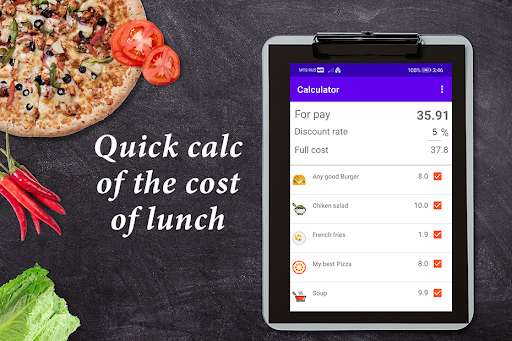
Next, go to the Calculator tab and select them using the checkbox to the right of each dish or by pressing.
The app will calculate the total cost of your lunch.
Before going to the restaurant
You should start working with the application from the restaurants tab.
Add all the places where you go to eat on this tab.
Next, go to the Food tab and select add from the menu.
Add all the dishes you would normally order for each of your restaurants.
Specify the price of each dish and select a restaurant when adding.
It is better to take a picture of the restaurant menu before going to it and add the main dishes that you plan or already order often.
How to use app in a restaurant?
After lunch, add all the dishes you ordered through the Food tab.
Click add next to each dish.
You can change a restaurant in the drop-down list of dishes at the top of the list of dishes.
All dishes of the selected restaurant will be shown.
Another alternative option for filling out the list for calculating the cost is to go to the Restaurants tab and by long-clicking on the selected restaurant select Load menu.
Next, go to the Calculator tab and mark the dishes you want.
The price of all dishes will be calculated at the top next to the For pay label.
If suddenly you need to find out the price for half a portion, then by long pressing in the calculator menu, select Half portion.
The price of the selected dish will be halved.
If you ordered a new dish that is not in your calculation list, select Add dish from the menu and set the dish name and price.
The dish will be included in the calculation immediately
How to delete dishes from calculation
With a long press on each dish, a menu appears.
Select Delete from the menu and the selected dish will be removed from the list.
To delete all dishes from the calculator - select Clear
Deleting a dish in the calculator does not delete it from the application.
It remains in the list of all dishes.
Finally, delete the dish through the menu by long pressing on the dish on the Food tab.
It's no secret that you can get cheated in a restaurant and pay a little more than you need to.
To prevent this, this calculator has been created.
Suitable for a large company and banquets, when you need to quickly calculate the cost of all dishes.
The menu calculator will allow you to quickly check the restaurant bill against a pre-entered list of dishes(food)
Imagine a situation, you go to the same place for lunch every day and order about the same meals.
Your restaurant has a permanent list of business lunch menus.
After lunch you pay at the restaurant.
To check the cost of your lunch, simply add all the restaurant's dishes to our app.
This can be done on the Food tab via the menu.
When visiting a restaurant, add the dishes you ordered to the calculator from the Food screen.
You can do this by clicking the add button near the name.
Next, go to the Calculator tab and select them using the checkbox to the right of each dish or by pressing.
The app will calculate the total cost of your lunch.
Before going to the restaurant
You should start working with the application from the restaurants tab.
Add all the places where you go to eat on this tab.
Next, go to the Food tab and select add from the menu.
Add all the dishes you would normally order for each of your restaurants.
Specify the price of each dish and select a restaurant when adding.
It is better to take a picture of the restaurant menu before going to it and add the main dishes that you plan or already order often.
How to use app in a restaurant?
After lunch, add all the dishes you ordered through the Food tab.
Click add next to each dish.
You can change a restaurant in the drop-down list of dishes at the top of the list of dishes.
All dishes of the selected restaurant will be shown.
Another alternative option for filling out the list for calculating the cost is to go to the Restaurants tab and by long-clicking on the selected restaurant select Load menu.
Next, go to the Calculator tab and mark the dishes you want.
The price of all dishes will be calculated at the top next to the For pay label.
If suddenly you need to find out the price for half a portion, then by long pressing in the calculator menu, select Half portion.
The price of the selected dish will be halved.
If you ordered a new dish that is not in your calculation list, select Add dish from the menu and set the dish name and price.
The dish will be included in the calculation immediately
How to delete dishes from calculation
With a long press on each dish, a menu appears.
Select Delete from the menu and the selected dish will be removed from the list.
To delete all dishes from the calculator - select Clear
Deleting a dish in the calculator does not delete it from the application.
It remains in the list of all dishes.
Finally, delete the dish through the menu by long pressing on the dish on the Food tab.
MyAndroid is not a downloader online for Menu cost calculator. It only allows to test online Menu cost calculator with apkid ru.calculator.menu. MyAndroid provides the official Google Play Store to run Menu cost calculator online.
