

We provide Music Notifications online (apkid: com.phtl.musicnotification) in order to run this application in our online Android emulator.
Description:
Run this app named Music Notifications using MyAndroid.
You can do it using our Android online emulator.
Note: The app is for use with Bluetooth or Wired Headsets or Headphones with play/pause button.
You are listening to music using headset and a notification comes on your phone.
The phone briefly ducks the music.
You are curious what notification you received, but you don't want to stop your activity and pull the phone out to check the notifications.
"music notifications" solves this problem.
Just press the Play-Pause button on your headset and the app will read the received notification to you and continue with the music.
This free version of the app requires you to enable the notification feature once a day (after 1 week of use).
You can overcome this limitation with a low cost $0.99 upgrade of in-app purchase.
With this upgrade the ads also will be disabled.
Usage:
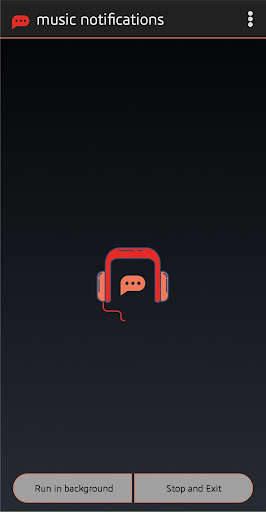
The headset icon is enabled only when a wired headset (orange) or Bluetooth headset (yellow) is connected to phone.
Once headset icon is enabled, the notification icon can be enabled/disabled with touch toggle.
When listening to music if you hear notification from phone, press the play/pause button on your headset.
The app will play the notification on the headset and continue with music.
If you press play/pause button again within 6 seconds, the music is stopped.
If the button is pressed with there is no notification, music is paused as the default action.
The settings screen, which can be reached by touching 3 dots on top right, allows user option to enable type of notifications to be played.
The main categories of notification are Email, Facebook, Twitter, SMS, WhatsApp and others
You are listening to music using headset and a notification comes on your phone.
The phone briefly ducks the music.
You are curious what notification you received, but you don't want to stop your activity and pull the phone out to check the notifications.
"music notifications" solves this problem.
Just press the Play-Pause button on your headset and the app will read the received notification to you and continue with the music.
This free version of the app requires you to enable the notification feature once a day (after 1 week of use).
You can overcome this limitation with a low cost $0.99 upgrade of in-app purchase.
With this upgrade the ads also will be disabled.
Usage:
The headset icon is enabled only when a wired headset (orange) or Bluetooth headset (yellow) is connected to phone.
Once headset icon is enabled, the notification icon can be enabled/disabled with touch toggle.
When listening to music if you hear notification from phone, press the play/pause button on your headset.
The app will play the notification on the headset and continue with music.
If you press play/pause button again within 6 seconds, the music is stopped.
If the button is pressed with there is no notification, music is paused as the default action.
The settings screen, which can be reached by touching 3 dots on top right, allows user option to enable type of notifications to be played.
The main categories of notification are Email, Facebook, Twitter, SMS, WhatsApp and others
MyAndroid is not a downloader online for Music Notifications. It only allows to test online Music Notifications with apkid com.phtl.musicnotification. MyAndroid provides the official Google Play Store to run Music Notifications online.
