

We provide Dues Manager online (apkid: com.acara21.duesmgr) in order to run this application in our online Android emulator.
Description:
Run this app named Dues Manager using MyAndroid.
You can do it using our Android online emulator.
General Overview
This application help you to record the receipt of dues, fees, or subscription charging on a monthly basis.
It's a simple application that main purpose is to record daily transactions and process them into reports.
The way it operates is very easy, but behind its simplicity this application is very helpful.
You have to connect to the internet because this application stores data online on a centralized server.
The work flow for the first time is:
(1) Configuration -> (2) Workspace -> (3) Members -> (4) Transactions -> (5) Reports
(1) Configuration
Before starting to use this application, do the following config:
a.
Set the application language.
For now only two available language: Indonesian and English
b.
Manage Group.
Groups are used to organize members.
c.
Manage Dues Names.
You can provide a name for the type of payment.
The payment amount can be defined as fixed amoount or vary every month.
The start of the month period can be determined at any time.
It doesn't have to be from January.
d.
Manage User.
This is optional, you can skip it.
For further use, please read topic about multi user and data sharing.
(2) Workspace
Tap the workspace button at the top of the screen.
The workspace is mandatory so that you can manage data more quickly and easily.
The data displayed in the list of Members, transactions, and reports is according to the options in this Workspace.
Yes, workspace is global filtering.
The options in the workspace will be shown after you make the initial settings for Group and Dues names.
The data filters that are filled in the workspace are:
a.
Workspace: The name of the entity that you manage.
b.
Dues Names: Select the dues name you want to display and manage at this time.
c.
Group: Select Group you want to display and manage at this time.
d.
Year: Select the transaction year.
For the multi-year period, chose the starting year.
For period payment starts from July 2017 - June 2018, then choose 2017.
Once you filled in the Workspace options correctly, You will only see data that match with the filter options.
- Member list only shows everyone in the Group that you select.
- Transaction list only displays payment data for members, dues name and years according to the filter selection.
(3) Members
Members are persons who make dues payments every month.
List all members in the entity you manage.
When creating a member, make sure he/she is included in one of the groups.
(4) Transactions
This is the "Books of original entry".
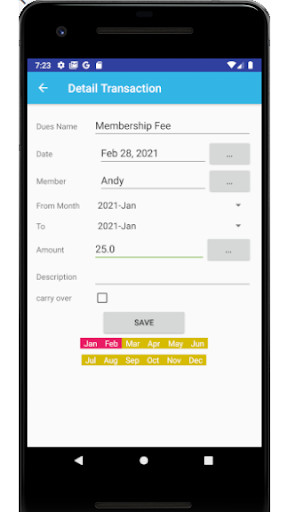
Carefully record all receipts from Members regarding dates, payment periods and amounts.
The application also provides cash out transactions to record cash withdrawals / disbursements.
(5) Report
There are two reporting models.
1.
Pivot Report: presents a summary of payments with columns of months that have been paid or not
2.
Cash Flow: the amount received, withdrawn, and the balance per month.
This application help you to record the receipt of dues, fees, or subscription charging on a monthly basis.
It's a simple application that main purpose is to record daily transactions and process them into reports.
The way it operates is very easy, but behind its simplicity this application is very helpful.
You have to connect to the internet because this application stores data online on a centralized server.
The work flow for the first time is:
(1) Configuration -> (2) Workspace -> (3) Members -> (4) Transactions -> (5) Reports
(1) Configuration
Before starting to use this application, do the following config:
a.
Set the application language.
For now only two available language: Indonesian and English
b.
Manage Group.
Groups are used to organize members.
c.
Manage Dues Names.
You can provide a name for the type of payment.
The payment amount can be defined as fixed amoount or vary every month.
The start of the month period can be determined at any time.
It doesn't have to be from January.
d.
Manage User.
This is optional, you can skip it.
For further use, please read topic about multi user and data sharing.
(2) Workspace
Tap the workspace button at the top of the screen.
The workspace is mandatory so that you can manage data more quickly and easily.
The data displayed in the list of Members, transactions, and reports is according to the options in this Workspace.
Yes, workspace is global filtering.
The options in the workspace will be shown after you make the initial settings for Group and Dues names.
The data filters that are filled in the workspace are:
a.
Workspace: The name of the entity that you manage.
b.
Dues Names: Select the dues name you want to display and manage at this time.
c.
Group: Select Group you want to display and manage at this time.
d.
Year: Select the transaction year.
For the multi-year period, chose the starting year.
For period payment starts from July 2017 - June 2018, then choose 2017.
Once you filled in the Workspace options correctly, You will only see data that match with the filter options.
- Member list only shows everyone in the Group that you select.
- Transaction list only displays payment data for members, dues name and years according to the filter selection.
(3) Members
Members are persons who make dues payments every month.
List all members in the entity you manage.
When creating a member, make sure he/she is included in one of the groups.
(4) Transactions
This is the "Books of original entry".
Carefully record all receipts from Members regarding dates, payment periods and amounts.
The application also provides cash out transactions to record cash withdrawals / disbursements.
(5) Report
There are two reporting models.
1.
Pivot Report: presents a summary of payments with columns of months that have been paid or not
2.
Cash Flow: the amount received, withdrawn, and the balance per month.
MyAndroid is not a downloader online for Dues Manager. It only allows to test online Dues Manager with apkid com.acara21.duesmgr. MyAndroid provides the official Google Play Store to run Dues Manager online.
